
New combined ezManage and delivery app
We’ve merged the delivery app and the ezManage app into one app so your team can manage orders and deliveries in a single place.
Here’s what’s changed:
-
One app, two workspaces
Easily switch between ezManage and driver tools from the same app.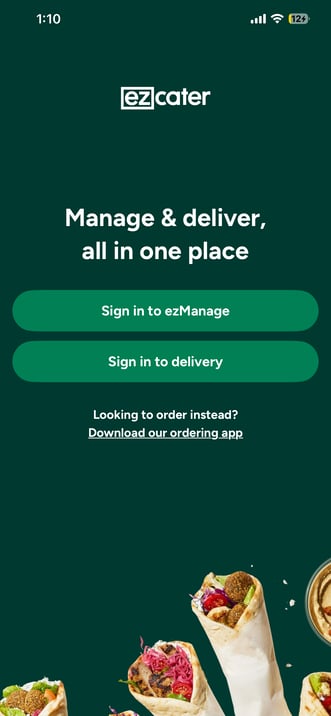
Drivers still need a separate login for the driver tools, which your ezManage admin or manager can set up and share with them.
How It works
By scanning the QR code, you can assign yourself to the delivery, giving you turn-by-turn navigation and the ability to call the customer from a masked number once you arrive onsite.
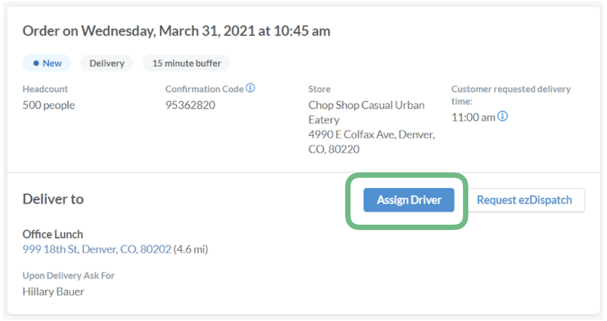
1. Catering manager opens ezManage and assigns a driver from the delivery details section of the orders page. The driver will receive a text message with the order details, and the order will appear in their ezManage - Delivery app.
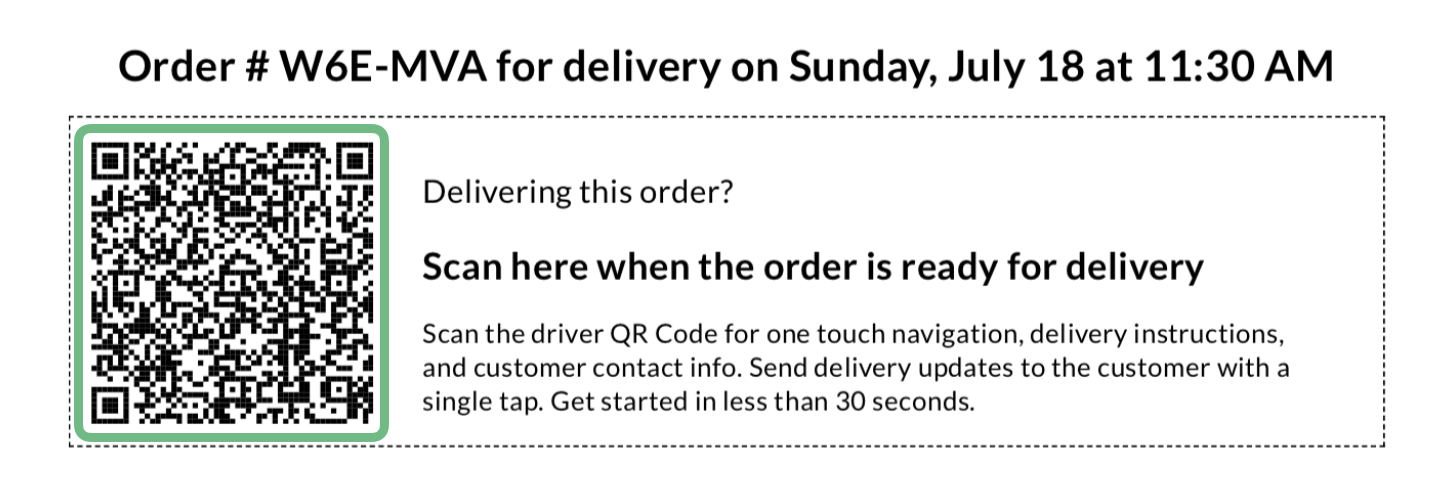
2. In-house delivery driver scans the QR code on the kitchen printout to assign themself to the order. The order appears in the ezManage - Delivery app for them to take action the day of the event. Drivers get reminder text messages if assigned days in advance.
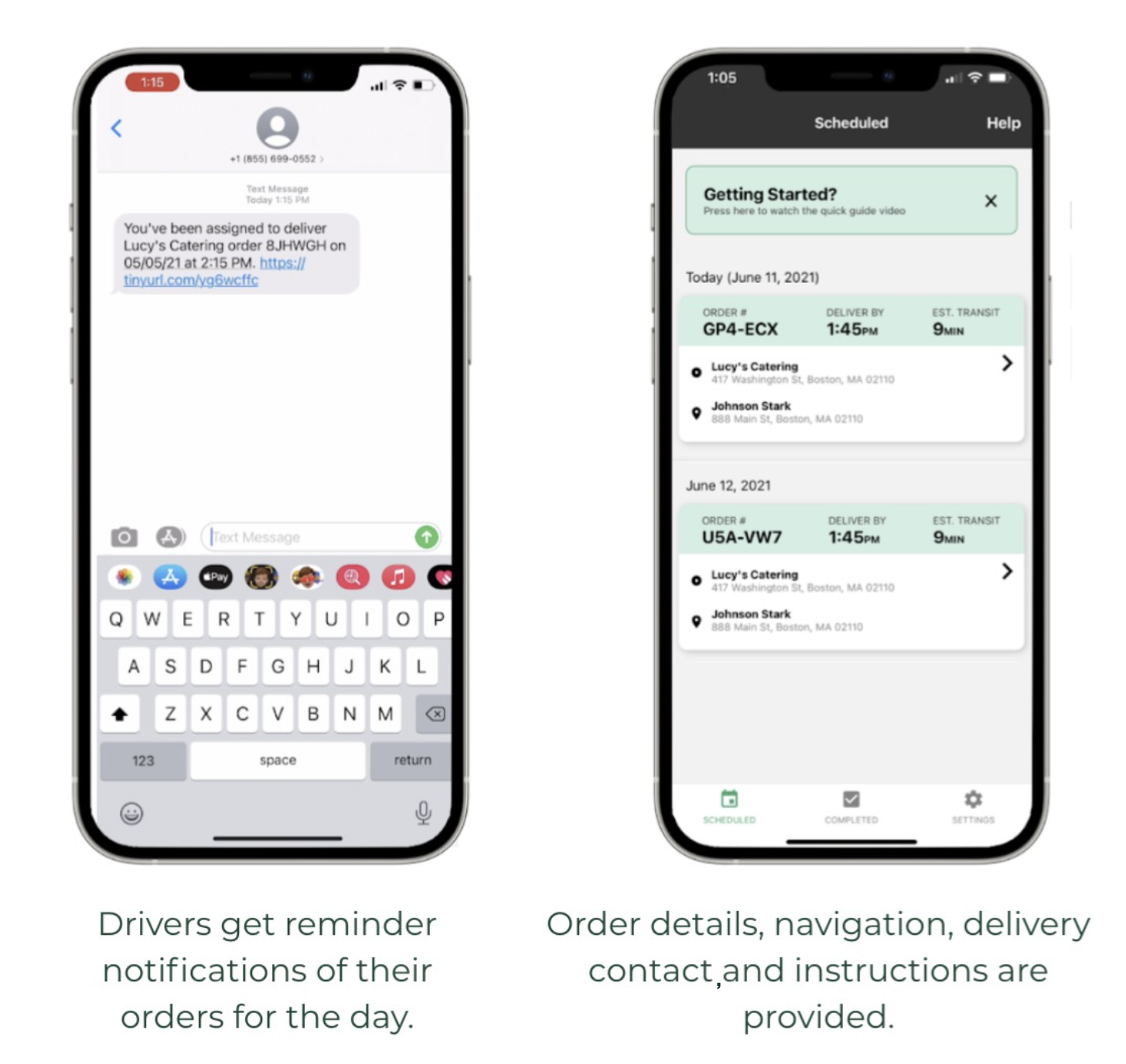
Your drivers get accurate info
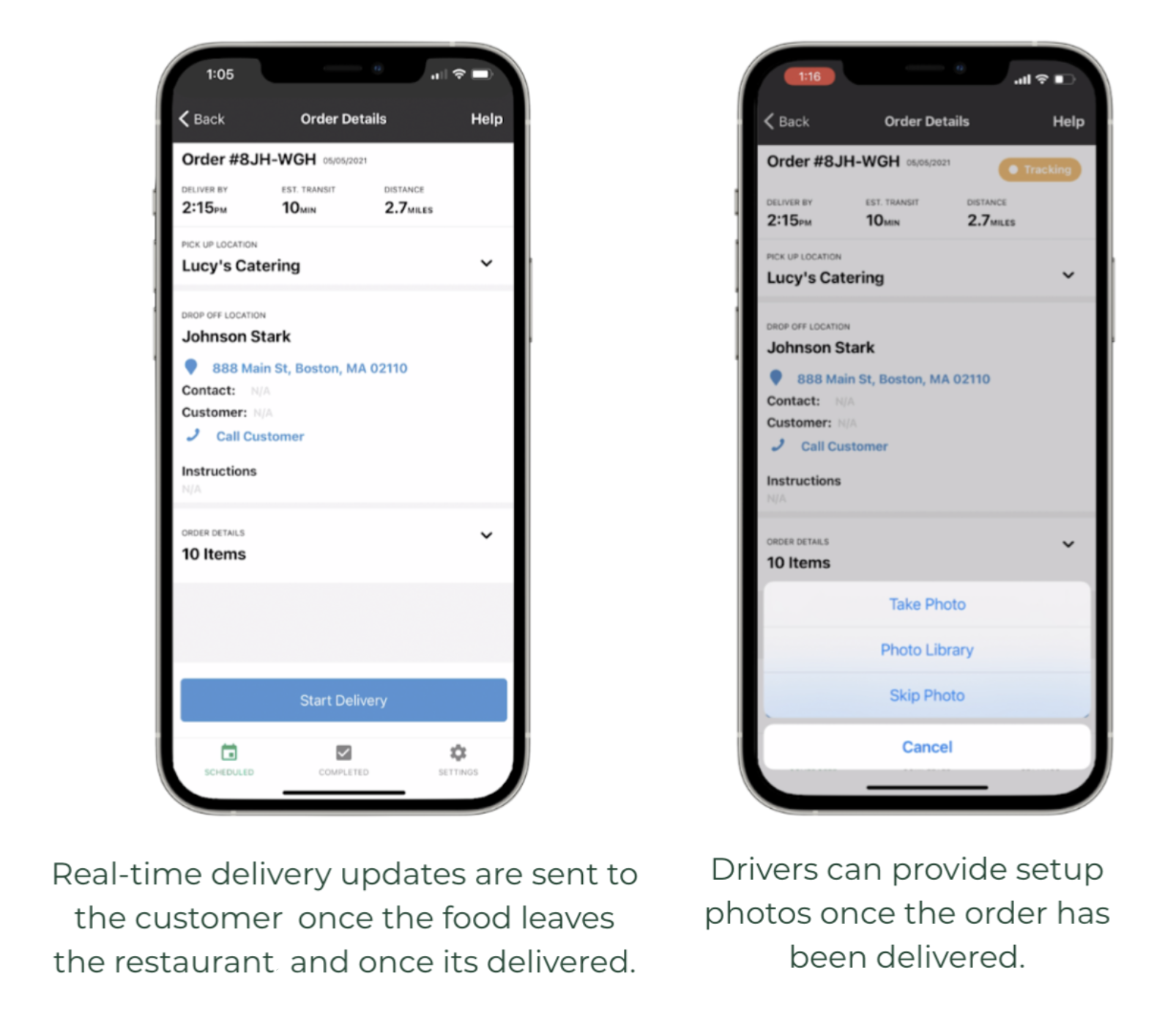
When you assign drivers in ezManage or they scan the QR code on your order printouts, they get delivery details, one-touch navigation, and the ability to call customers from a masked number.
You get fewer status calls
You build trust with customers. Our delivery tracking provides an excellent customer experience. There's no more guessing where orders are.
You get total visibility
All delivery status updates and setup photos go right into ezManage to help your restaurant prepare for future orders.
Printable/Downloadable Training Resources
- Delivery Management and ezManage - Delivery App One-Pager
- Delivery Management Features One-Pager
- Delivery Tracking Guide
If you have any questions, please don't hesitate to email us at delivery@ezcater.com