
Starting January 5, 2026, ezCater is rolling out a new delivery tracking standard and an associated delivery tracking fee for certain partners. This article explains who is affected, how fees work, how to dispute them, and what new tools are coming to help you manage tracking. Watch our video below to learn more.
Who is affected and when:
New brands
Beginning January 5, 2026, any new brand (brands with 0 locations in the ezCater marketplace as of January 1, 2026) are expected to:
- Provide delivery tracking on all orders, or
- Incur a $2.25 fee for each untracked order.
Note for new brands: If an order does not include delivery tracking provided by the restaurant, the delivery tracking fee will automatically apply.
Existing brands
Important: Existing brands are not expected to provide tracking until March 31, 2026.
Until March 31, 2026: Existing brands will not incur the $2.25 tracking fee. Those brands will see the fulfillment issues marked to provide transparency.
After March 31, 2026, the delivery tracking standard and fee will expand to include existing brands as well. We’ll share more details ahead of that change.
Relish orders are not being considered in these metrics
What’s new: Delivery Tracking Fee Codes & Disputes
To support this change, we’re introducing:
- A new automated delivery tracking fee applied to untracked orders.
- New reason codes for untracked delivery which can be found in the completed orders tab under order issues section.
- The ability for partners to dispute this fee directly in ezManage.
- A Delivery Reporting Dashboard to help you monitor tracking performance.
New Automated Delivery Tracking Order Issues
Starting January 5, 2026:
- Delivery untracked
- Orders without delivery tracking will automatically be tagged with new Delivery Tracking Fulfillment Issue code:
- Partially tracked
- When only one of the two required events (“on the way” or “delivered”) is present or when timestamps are not meeting our quality standards (i.e. too close in proximity).
- Delivery outsourced
- Delivery was outsourced to a third‑party provider outside ezDispatch or approved integrated self‑delivery. These are always considered untracked for the purposes of the standard and cannot be disputed.
When applicable, these codes will be applied automatically by the system and
Will result in a $2.25 fee for untracked orders, for eligible brands (see “Who is affected and when” above).
Where you’ll see these fees
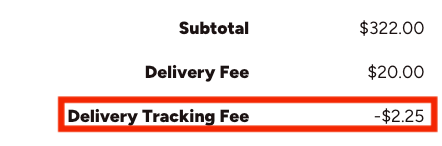
- These new Delivery Tracking Order Issues will appear on the Order Details page for the affected order, as well as in your Operational Metrics and Delivery Reporting Dashboard
How to dispute a Delivery Tracking Fulfillment Issue
If you believe a delivery tracking fee was applied in error (for example, if tracking was provided or the order qualifies for an exception), you can dispute it directly in ezManage. Read this article to learn more about our dispute process.
Choosing a delivery tracking solution
If you are a new brand or planning ahead for the March 31, 2026 expansion of this standard, we strongly recommend setting up a delivery tracking solution and learning how to provide full delivery tracking. Read this article to learn more about which solutions work best for you and your catering business.
To review a step-by-step resource, follow this link to review your delivery tracking options and how to provide tracking for every order using your own drivers.